
The latest SQL Server Management Studio 22 update (22.11.0) seems to have caused some issues, including nuking the connection history, as per Brent Ozar’s post.
I figured it might be useful to have a way to backup SSMS 22’s connection history before an update, and then restore it in case of similar issues.
This post is going to be a short one.
The script
Backup-Restore-SSMS22Connections.ps1 does pretty much exactly what the name suggests.
When using the -Backup switch:
- It locates the SSMS 22 (non-preview) folder.
- Loads the privateregistry.bin hive into a custom registry mount point.
- Exports the ConnectionMruList registry key to the .reg file specified via
-BackupFile. - Unloads the privateregistry.bin hive.
When using the -Restore switch:
- It locates the SSMS 22 (non-preview) folder.
- Makes a backup copy of the existing privateregistry.bin file.
- Loads the privateregistry.bin hive into a custom registry mount point.
- Deletes any existing contents of the current ConnectionMruList registry key.
- Imports the previously exported ConnectionMruList from the .reg file specified via
-BackupFile. - Unloads the privateregistry.bin hive.
You can find the script in my SSMS Tools GitHub repo.
If you want more details about the process, check out my post about importing SSMS 21 saved connections into SSMS 22.
That post goes into lots of details about the registry hive involved.
Usage
Using the script to either backup or restore SQL Server Management Studio 22’s connection history is fairly straightforward.
Backup SSMS 22 connection history
To backup SSMS 22’s saved connections you just need to use the -Backup switch and provide a file path to the -BackupFile parameter.
| 1 | .\Backup-Restore-SSMS22Connections.ps1 -Backup -BackupFile "D:\Backups\SSMS22_Connections.reg" |

Once this is done, you can find the resulting .reg file in the path you’ve specified.
Note: you can’t simply double-click the .reg file (or run reg import) and call it a day. The ConnectionMruList key doesn’t live in the regular registry.
It sits inside privateregistry.bin, SSMS’s isolated registry hive that’s only “visible” while SSMS is running.
That’s why the script loads the hive into a temporary mount point, imports the data, and then unloads it again.
Importing the .reg file manually would dump the connections into the wrong location and never write it to the privateregistry.bin hive.
Security note: connection strings in the .reg file are DPAPI-encrypted, so they’re tied to your Windows user profile and won’t decrypt elsewhere.
Still, you should keep it in a secure location just in case.
Restore SSMS 22 connection history
To restore the SSMS 22’s saved connections from the previously exported .reg file, just use the -Restore switch and specify the path to the .reg file to the -BackupFile parameter.
| 1 | .\Backup-Restore-SSMS22Connections.ps1 -Restore -BackupFile "D:\Backups\SSMS22_Connections.reg" |
You’ll be prompted to confirm the overwrite of any existing saved connection in the identified privateregistry.bin file.
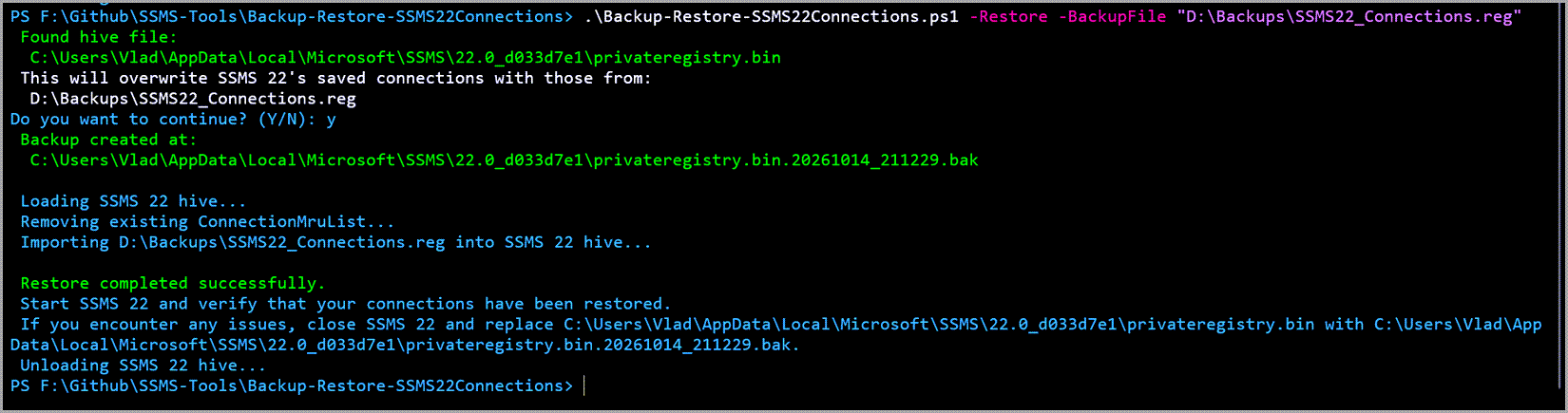
At this point all you need to do is start SSMS 22 up and check your connection history.
Conclusion
Looks like the general advice to always have a good backup now also applies to SQL Server Management Studio.
If you’re looking for a way to migrate SQL Server Management studio saved connections from 21 to 22, check out this post.
Or, if you want to extract and decrypt SSMS saved connections, this post’s for you.