
I needed a fresh Ubuntu VM in VirtualBox this weekend so I figured I can take this opportunity to refresh my PowerShell based process.
Prerequisites
For this VM I’m using the following:
- Oracle VirtualBox 7.2.6 r172322 running on a Windows host.
- The installation media (ISO file) for Ubuntu 24.04.3 LTS.
- 51GB of available space on the drive where the VM will live.
Note that the default Ubuntu install is ~10GB, but I want the extra space to be able to install other stuff later on.
Building the Ubuntu VM in VirtualBox
I’ve made the process easier to manage and customize by using variables for the VM configuration related values.
| 1 2 3 4 5 6 7 8 9 10 11 12 13 | # Path to the Ubuntu ISO file $ISOPath = "C:\Users\Vlad\Downloads\ubuntu-24.04.3-desktop-amd64.iso" # VirtualBox OS type $OSType = "Ubuntu24_LTS_64" # The name of the virtual machine $VMName = "Ubuntu24VM" # VM resource configuration $RAMSize = 8192 $VRAMSize = 32 $CoreCount = 4 $DiskSize = 51200 # Host network interface card name $HostNIC = "Intel(R) Ethernet Controller I225-V" |
Keep in mind that, while you can reuse most of the values, some will certainly be different on your machine (e.g.: $ISOPath and $HostNIC).
So, update them to match your case.
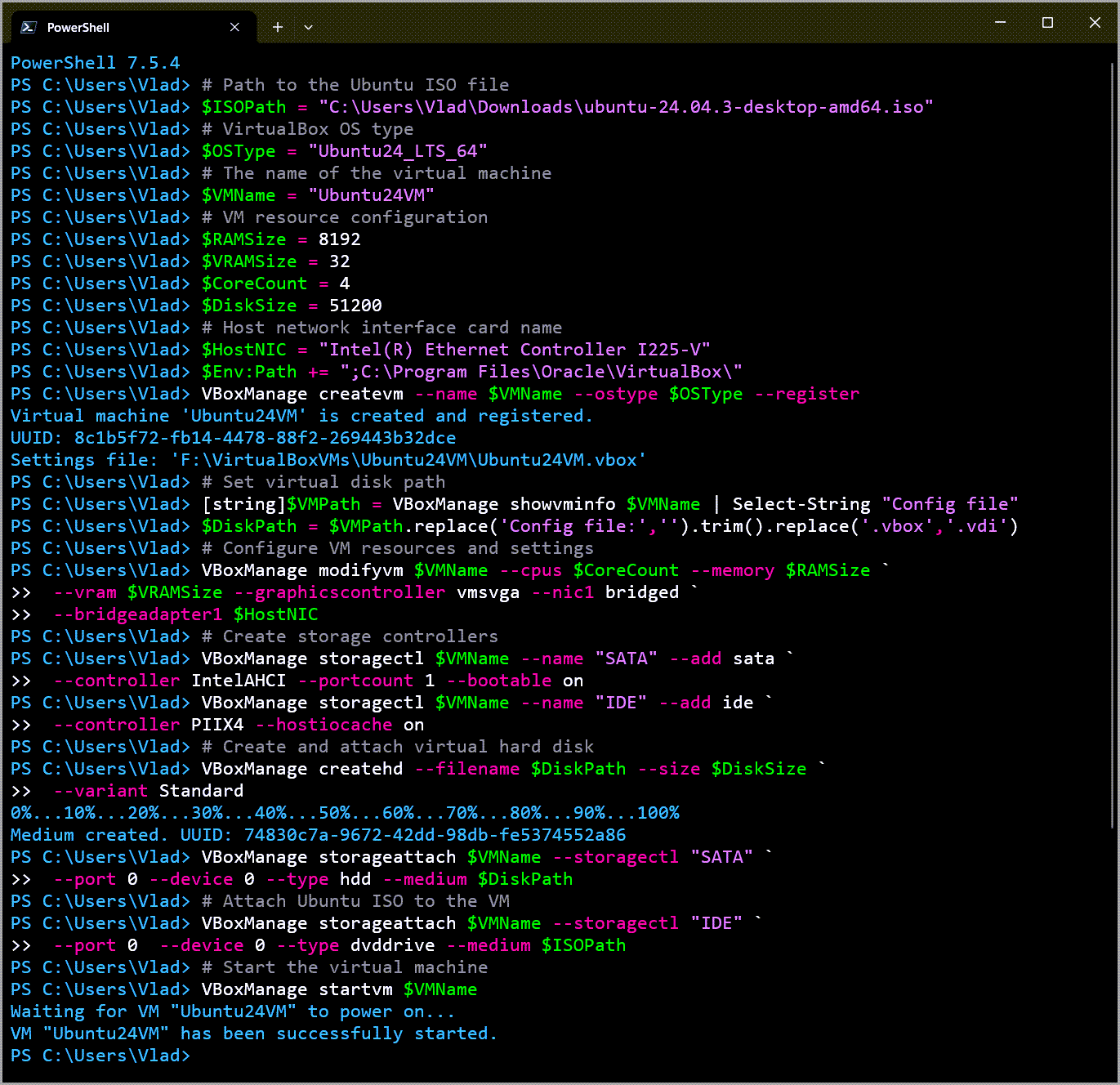
The following block can be directly copy-pasted into PowerShell.
| 1 2 3 4 5 6 7 8 9 10 11 12 13 14 15 16 17 18 19 20 21 22 23 24 25 | # append VirtualBox’s installation directory to PATH $Env:Path += ";C:\Program Files\Oracle\VirtualBox\" VBoxManage createvm --name $VMName --ostype $OSType --register # Set virtual disk path [string]$VMPath = VBoxManage showvminfo $VMName | Select-String "Config file" $DiskPath = $VMPath.replace('Config file:','').trim().replace('.vbox','.vdi') # Configure VM resources and settings VBoxManage modifyvm $VMName --cpus $CoreCount --memory $RAMSize ` --vram $VRAMSize --graphicscontroller vmsvga --nic1 bridged ` --bridgeadapter1 $HostNIC # Create storage controllers VBoxManage storagectl $VMName --name "SATA" --add sata ` --controller IntelAHCI --portcount 1 --bootable on VBoxManage storagectl $VMName --name "IDE" --add ide ` --controller PIIX4 --hostiocache on # Create and attach virtual hard disk VBoxManage createhd --filename $DiskPath --size $DiskSize ` --variant Standard VBoxManage storageattach $VMName --storagectl "SATA" ` --port 0 --device 0 --type hdd --medium $DiskPath # Attach Ubuntu ISO to the VM VBoxManage storageattach $VMName --storagectl "IDE" ` --port 0 --device 0 --type dvddrive --medium $ISOPath # Start the virtual machine VBoxManage startvm $VMName |
Installing Ubuntu 24.04 LTS on the VM
Once the Ubuntu VM starts, the option to Try or Install Ubuntu will already be selected, so just press Enter.

I won’t be providing screenshots for the following steps because they’re all in very user-friendly UI based menus.
On the Choose your language prompt, select your desired language and click on Next.
In the Accessibility in Ubuntu screen I just click Next without changing anything.
For the keyboard layout I leave the already selected English (US) which matches my physical keyboard, and click Next to proceed.
In the Internet Connection section I leave the already selected “Use wired connection” option and click on Next.
I skip the update prompt since I’ll apply the latest updates after I finish the initial configuration.
In the next step I opt to install Ubuntu.

And opt for the Interactive Installation option.
The installer also prompts about which app configuration I want, so I pick the Default Selection and click on Next.
I do not select any of the two options in the Install recommended proprietary software section and just click Next.
In the next section I leave “Erase disk and install Ubuntu” selected and click on Next.
I provide my user name and password as well as the computer name and click on Next.

On the next screen I leave the auto-detected timezone and click on Next.
I review the install options and click Next to start the installation.

When the installation completes, I click on Restart Now.
Optional – Install and configure SSH
I like using ssh because it makes things easier to get the VirtualBox Guest Additions up and running.
Without VirtualBox Guest Additions stuff like shared clipboard and shared folders won’t work.
First, I open the terminal and upgrade the freshly installed Ubuntu OS.
| 1 | sudo apt update && sudo apt upgrade -y && sudo apt autoremove |
Once that finishes, I install OpenSSH.
| 1 | sudo apt install ssh |
I then configure it to auto-start when the Ubuntu VM boots up.
| 1 | sudo systemctl enable ssh |
Check the status of SSH service to make sure it’s running.
| 1 | sudo systemctl status ssh |
And, if it isn’t running, start it up.
| 1 | sudo systemctl start ssh |
And check the status again.

Install VirtualBox Guest Additions
First, mount the Guest Additions ISO from Devices > Optical Drives > VBoxGuestAdditions.iso.

With SSH installed, I can connect to the Ubuntu VM via SSH from PowerShell and proceed from there with the VirtualBox Guest Additions installation.

If not, the same commands apply from inside Ubuntu’s terminal, but you’ll have to type them out manually since shared clipboard isn’t working yet.
Make a new directory under /media.
| 1 | sudo mkdir /media/cdrom |
Mount the physical CD/DVD device to the newly created directory.
| 1 | sudo mount /dev/cdrom /media/cdrom |
You’ll get a warning about the mount being write-only, and that’s ok.
Install the packages needed to build kernel modules (such as VirtualBox Guest Additions).
| 1 | sudo apt install -y dkms build-essential linux-headers-generic linux-headers-$(uname -r) |
Run the VirtualBox Guest Additions installer from the mounted CD image.
| 1 | sudo /media/cdrom/VBoxLinuxAdditions.run |
Reboot the VM.
| 1 | sudo reboot |
Enabling Shared Clipboard and Shared Folders
Once the VM reboots, I enable Shared Clipboard.

As well as Shared Folder.
So that I can easily pass things between the host and the Ubuntu VM running in VirtualBox.
Note: If your Ubuntu VM freezes at the login screen after providing the password, shutdown the VM and start it up again.
Don’t provide your password at the login screen, but instead first click on Settings and select Ubuntu on Xorg, and afterwards provide your password and press Enter.

In case of VM performance issues
If you run into issues with the VM being slow and/or freezing for brief periods of time, check out my post about fixing slow VirtualBox VMs.
Conclusion
Have fun building Ubuntu VMs in VirtualBox with PowerShell.
Also, after playing around with this version of Ubuntu, it seems like Linux is becoming more and more appealing and user-friendly, with wide support for applications and games.
And I’m saying this as a (still) Windows fan.