
SQL Server Management Studio 22 just went GA this week, so I figured I’d document my new configuration in a blog post.
A while ago I made a post about my then SSMS 19 configuration, but a lot has changed in the latest version of SSMS.
Table of contents
Tip
If you want to start with a fresh configuration, or SSMS 22 copied partial configuration changes from your previously installed SSMS 21, you can easily reset the config.
Open PowerShell and run:
| 1 | &'C:\Program Files\Microsoft SQL Server Management Studio 22\Release\Common7\IDE\SSMS.exe' /resetsettings |
This will start SQL Server Management Studio 22 with the default configuration.
That path will depend on your installation’s location, but in 99% of the cases people go with SSMS’s default install directory.
Note
Aside from the theme and Presenter Mode, all the options in this post are located in sections/subsections of Tools>Options>All Settings.
Theme – Cool Slate
I was a really big fan of the dark theme as soon as it was available in SSMS 21, but in SSMS 22 I like the Cool Slate theme more.

To change themes go in Tools > Theme and pick your desired theme.
Environment
Font sizes
You can control everything related to Fonts from Environment > More Settings > Fonts and Colors.

But, as of SSMS 21, I’ve opted to just switch on Presenter Mode and leave it on permanently.
To toggle Presenter Mode, go in View > Presenter Mode and click on Toggle Presenter Mode.

This has the added bonus of increasing icon and menu item sizes as well, and, as a result, saving a lot of individual manual configuration time.
Results font size
In SSMS 22 you can now zoom in and out in the result set grid using Ctrl+Scroll Up/Down, so there’s no need to change that to a specific size.
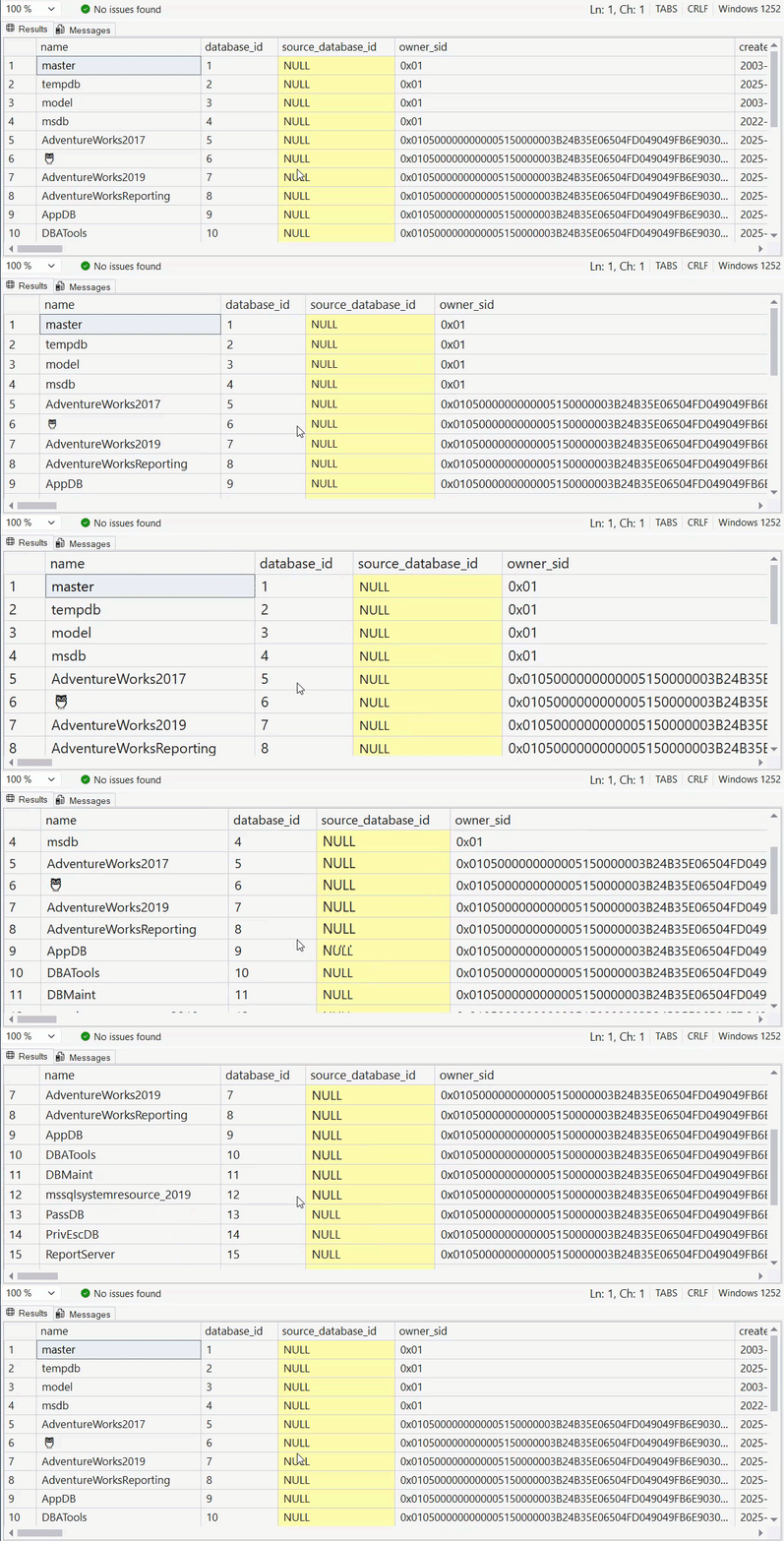
This comes in really handy when presenting or doing screen sharing sessions.
Note: the results grid matches the theme, I’m just reusing the GIF from my SSMS 22 Preview 3 post.
Import and Export settings
On my own computer, this doesn’t matter as much so I just point it to a directory in My Documents, but on my work laptop I like to set this to a directory that’s synced with OneDrive.
This can be configured in Environment > More Settings > Import and Export Settings.

Query Shortcuts
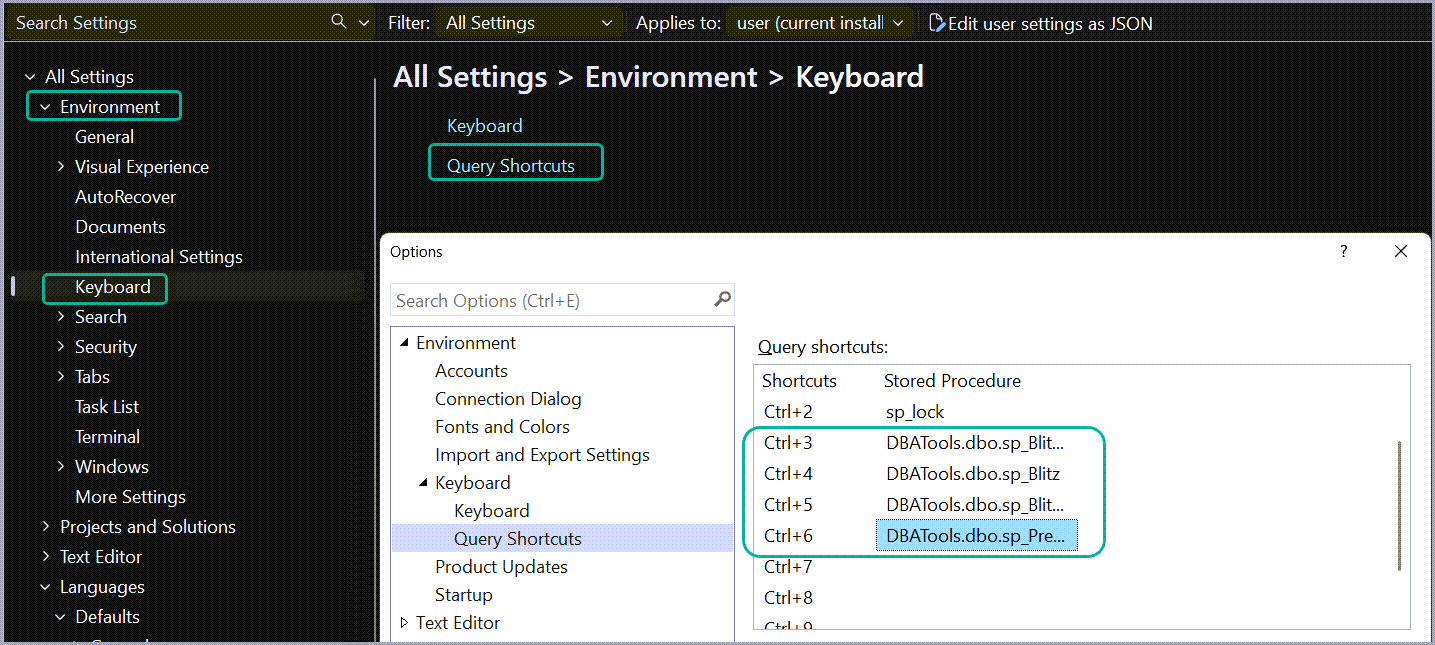
I like to set up shortcuts for sp_BlitzFirst, sp_BlitzWho, sp_Blitz, and sp_PressureDetector. This is even more useful if you’re a prod DBA and your team sets up that one database filled with troubleshooting stored procedures on all the instances you manage.
Query Shortcuts can be configured in Environment > Keyboard > Query Shortcuts.
Open query editor tab on startup
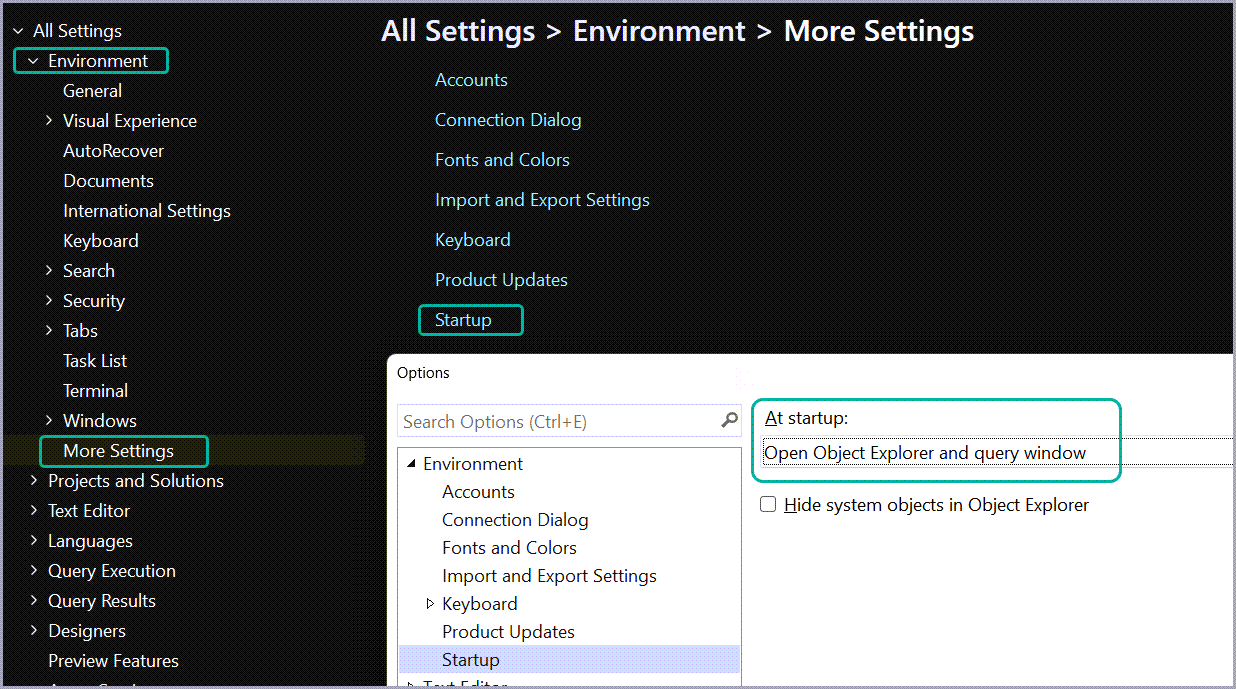
By default, SQL Server Management Studio only opens Object Explorer as soon as it starts up and connects to an instance.
But evey time I open SSMS I end needing a query editor tab opened, so I set it to open by default at startup.
This can be done from Environment > More Settings > Startup > At Startup where I pick “Open Object Explorer and query window”.
Suppress line endings complaints
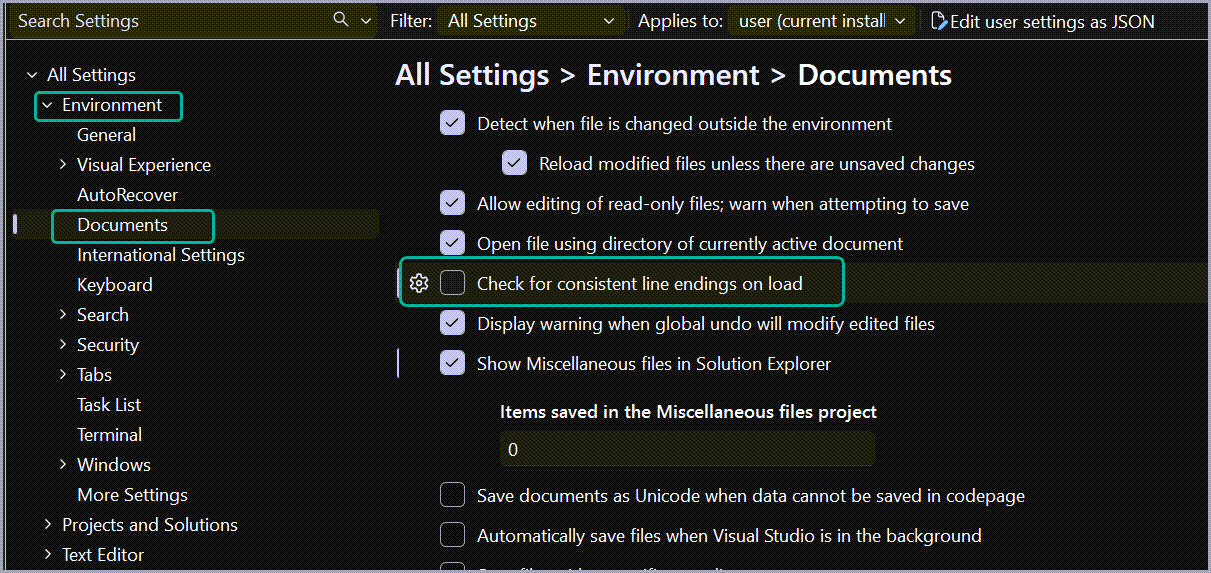
Disable checking for line ending consistency of .sql files. This ends up just being noise when you open .sql files with either Unix (LF) or mixed line endings fairly often. Furthermore, the warning also has a prompt to convert line ending to Windows line endings (CR LF), which you might not want if you want to respect the original line endings.
To disable the second* most annoying pop-up message in SSMS go in Environment > Documents and uncheck “Check for consistent line endings on load”
(* the most annoying pop-up message in SSMS is the one that shows up when I accidentally expand the database diagrams node.)
Tabs – using the new layout
In pre-21 versions of SSMS I was a big fan of using pinned tabs in combination with the “show pinned tabs in a separate row” option.
SSMS 21 and 22 bring new tab layouts.
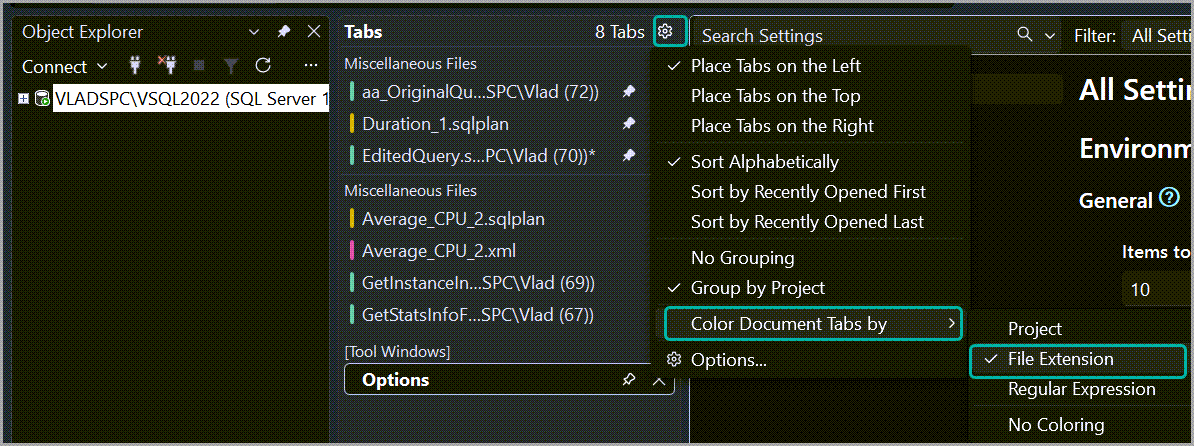
Now I like to configure tabs to show on the left side, between Object Explorer and the Query Editor window, and sort them alphabetically
The two options are found in Environment > Tabs.

I also leverage SQL Server Management Studio 22’s ability to rename tabs and color them by extension.
This makes it very easy to keep track of and navigate through tabs when working with multiple tabs.
Text Editor
Tabs – cleaner names
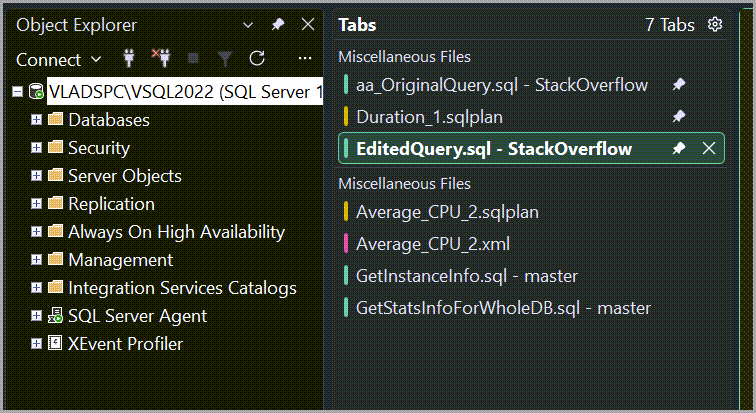
I like keeping editor tab name text to a minimum by not including the login and server name.
If I need to check the server and/or login name, I can always check the status bar.
To change this I go in Text Editor > More Settings > Editor Tab and Status Bar and set the following to false:
- Include login name
- Include server name

Note that a restart of SQL Server Management Studio is required for this configuration change to take effect.
The result is much cleaner tab names.
Languages
Line numbers
Line numbers now seem to be on by default for all languages except XML.
But, if they’re not, you can enable them from Languages > [Language] > General > Line Numbers.

If word wrap is your jam, this is also where you can enable it. It’s not mine, so I leave it disabled.
If you set this in Defaults > General then it will be applied to any language that doesn’t have a non-default setting for that option.
Disable the most counterintuitive option ever invented
I’m pretty sure at some point this was added as an April Fools joke to mess with people and whoever did it just forgot about it.
I’m talking about “Apply Cut or Copy to blank lines when there is no selection”.
It has flushed my clipboard on many occasions when I wanted to paste something on a new line but hit Ctrl+C, by accident, instead of Ctrl+V.
Disable it by unchecking “Apply Cut or Copy to blank lines when there is no selection” in Languages > Defaults > General.

Scroll bar – map mode
I’m a really big fan of the map mode scroll bar, so that’s one of the first things I set on a fresh install.
It can be selected in Languages > Defaults > Scroll Bars > Vertical scroll bar mode.

With map mode enabled, the scroll bar turns into a map of the current file which you can use to navigate up and down the script/file.
And, when hovering the mouse over a portion of the scroll map, a zoomed-in pop up of that portion will appear.

Query Execution
Disable open transactions check
This isn’t Oracleland and I don’t use explicit transactions 99% of the time.
At the end of a typical day I might end up having query editor tabs that have been connected to now discarded containers.
And I don’t have the patience to wait for SSMS to figure out that there’s nothing at the other end of that editor.
In Query Execution > SQL Server > General I uncheck “Check for open transactions before closing T-SQL query windows”.

Query Results
Keep new lines on copy-paste and handle large XML values
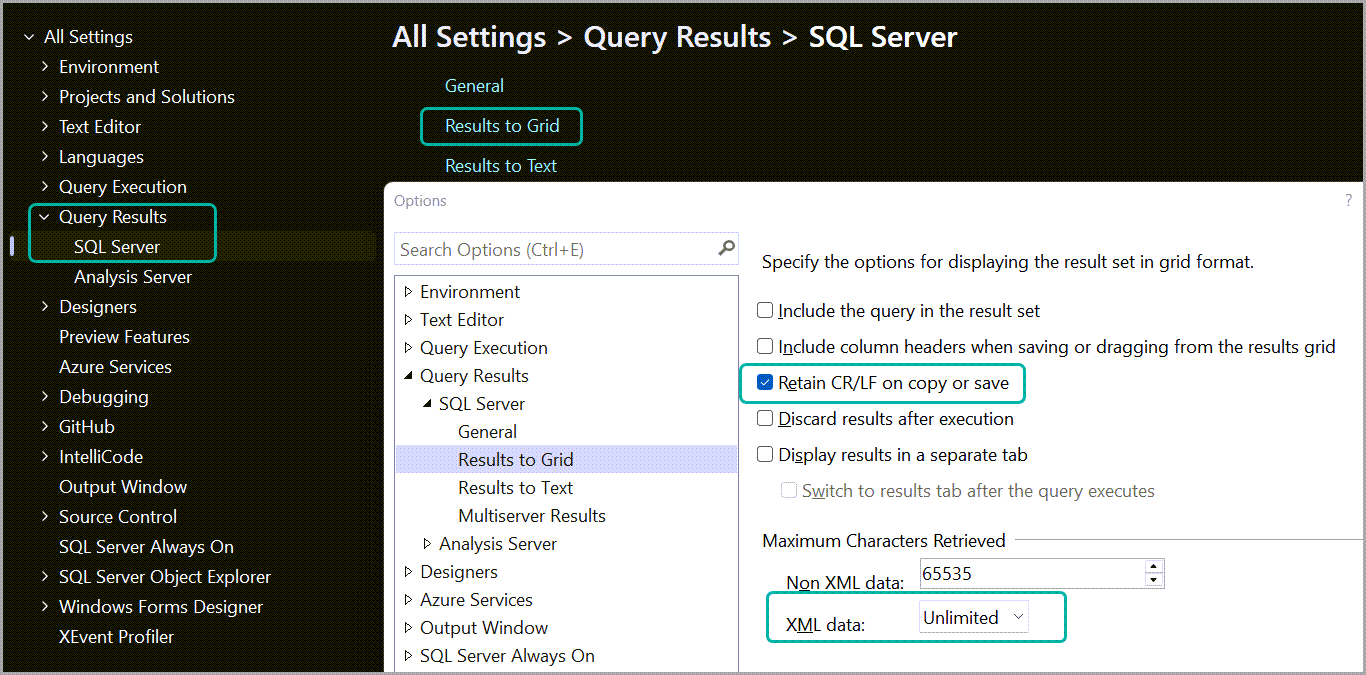
In the Results to Grid section, I set XML Data to Unlimited in order to avoid issues when retrieving large execution plans.
I check “Retain CR/LF on copy or save” to preserve new lines in result that contain query text (like sp_BlitzWho, sp_BlitzLock, sp_BlitzCache).
Both options can be found in Query Results > SQL Server > Results To Grid.
Increase the maximum characters per column for text results
Since PRINT is limited to only 4000 characters, I tend to resort to the results to text option when I want to see the contents of NVARCHAR(MAX) variables.
To accommodate this, I set “Maximum number of characters displayed in each column” to something more fitting than the default 256. My go-to value is 12000.
This option is in Query Results > SQL Server > Results to Text.

SQL Server Object Explorer
Drop the value of TOP <n> Rows command
I set “Value for Select top Rows command” to 10. This is a personal preference of an option I rarely use, but, when I do, I don’t see the point in returning more than 10 rows.
You can find this option by clicking on SQL Server Object Explorer > Commands > Table and View Options.

Note that I leave the “Edit top <n> Rows” value unchanged because I never use it since I’m not of fan of updating tables via that UI.
Bonus
My SQL Server Management Studio 22 configuration JSON – updated on 2026-08-04
If you want to use the same configuration I do, but want an easy way to apply some* of it, you can just copy-paste this into your SSMS 22 configuration JSON.
| 1 2 3 4 5 6 7 8 9 10 11 12 13 14 15 16 17 18 19 20 21 22 23 24 25 26 27 28 29 30 31 32 33 | /* Visual Studio Settings File */ { "environment.documents.showMiscFileProject": true, "languages.defaults.tabs.indenting": "block", "languages.defaults.tabs.character": "tab", "environment.general.environmentStart": "empty", "textEditor.codeCleanup.profile": "none", "environment.visualExperience.colorTheme": "cool-slate", "languages.defaults.scrollbars.verticalScrollBarMode": "map", "environment.documents.checkForConsistentLineEndings": false, "environment.tabs.documentTabs.layout": "left", "environment.tabs.documentTabs.tabSortOrder": "alphabetical", "environment.tabs.documentTabs.colorization": "extension", "languages.defaults.general.cutCopyBlankLines": false, "sqlServerObjectExplorer.commands.openTable.selectTopNRows": 10, "sqlServerObjectExplorer.scriptingOptions.object.includeIfNotExists": false, "environment.startupOptions.startup": "ConnectOEandQE", "executionSettings.sqlServer.general.executionTimeout": 0, "executionSettings.sqlServer.general.checkTransactionsOnClose": false, "executionResults.sqlServer.gridResults.maxCharsPerColumnForXml": "Unlimited", "executionResults.sqlServer.textResults.maxCharsPerColumnForText": 120000, "executionResults.sqlServer.gridResults.retainCRLFOnCopyOrSave": true, "executionResults.sqlServer.gridResults.maxCharsPerColumnForGrid": 165535, "executionResults.sqlServer.gridResults.includeColumnHeadersWhileSavingGridResults": true, "environment.search.findAndReplace.showAllResultsReplacedMessage": false, "environment.accounts.authenticateAcrossAllTenants": true, "environment.accounts.runAsWarning": true, "environment.search.findAndReplace.showNoResultsFound": false, "textEditor.general.display.bracePairColorization": true, "sqlFormatter.formatting.asKeywordOnOwnLine": false, "sqlFormatter.formatting.includeSemicolons": true, "textEditor.codeCompletions.general.codeCompletionsProviders": [] } |
To edit the JSON format of your SSMS 22 config just click the “Edit user settings as JSON” button at the top of the Options window.

And that will open the settings.json file in an editor tab that you can edit and save.
*The configuration options that are only available through ye olde Configurations menu aren’t available in JSON format.
So, those will have to be addressed manually. At least until they’ll get migrated to the new Options experience.
SQL formatter extension for SSMS
If you want to be able to format T-SQL from inside SSMS, you can install this extension by Erik Ejlskov Jensen.
Just note that for the moment, the extension strips out any type of comments during formatting.
This is an issue with the underlying SqlDOM.
Suppress the splash screen
As I’ve mentioned in my older post, I’m fully aware that I’m starting SSMS from the moment I click on the icon.
There’s no need for a splash screen to remind me.
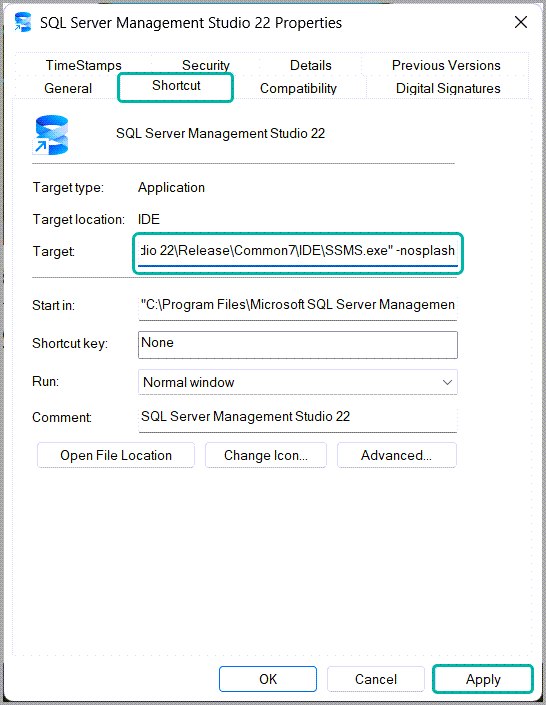
To suppress it, I go in the shortcut’s properties.

And append a space followed by -nosplash to the target.
Importing saved connections from SSMS 21
If you’ve installed SSMS 22 you may have noticed that it didn’t prompt to import connection history and saved credentials from SSMS 21.
If you want to hold on to your SSMS 21 connection history, then check out my post on importing connection data into SSMS 22. It contains both a PowerShell script to automate the process as well as a walk-through if you want to get your hands a bit dirty with Registry Editor.
And, if you’re looking for a way to extract and decrypt SSMS 21 and SSMS 22 connection data, check out my blog post covering a PS script that does exactly that.
Conclusion
Feel free to share your preferred SQL Server Management Studio 22 configuration options in the comments.
If you want to read more SSMS related stuff, check out my SSMS tips & tricks post.
1 comment
Good article.
In SSMS 22, Is there a way to configure the save query as my default location? (not the results, I am looking for queries saving file)
It is defaulting to …\SQL Server Management Studio 22 folder. I want it as say “C:\ProjectA\Phase2\Queries\”
Thanks in advance.