
I wasn’t really planning on writing a blog post today, but I got curios if there’s any way in which connections saved in SQL Server Management Studio 21 can be migrated in SSMS 22.
If you’ve installed SQL Server Management Studio 22 you may have noticed that the saved connection details weren’t migrated over from SSMS 21.
It’s documented in the list of known issues for SSMS 22 and marked as having no workaround.

This wouldn’t necessarily be a problem on my home lab environment, but at work I have tens of connections in SSMS 21, some of which with saved credentials.
Having to manually add them to SSMS 22 would be a hassle, and, in case of an urgent issue, I may not have time to dig around for credentials for some of the instances.
Using the Classic Connection Dialog? – read this first
Note: for the time being both the PowerShell script and the manual steps apply to the modern Connection Dialog. The classic Connection Dialog won’t show the imported data, as noted in David Forster’s comment.
While switching SSMS 21 from the classic Connection Dialog to the modern one allows you to transfer connection history to SSMS 22 using either of the two methods, saved passwords are not properly converted to SSMS 21’s classic Connection Dialog and.
As a result, you will have to do the following steps for each saved password in SSMS 22 post-transfer:
- update the password
- re-check the “Remember Password” option
- successfully connect with the updated password
For more details, see my reply to Stefan Schrama’s comment on this post.
Update: PowerShell script to automate this
After publishing this post, I’ve decided to see if I can quickly automate the process to make things easier.
The result is Import-SSMS21ConnectionsToSSMS22.ps1 which can be found in my SSMS-Tools repo.
To run it:
- Download the script.
- Make sure both SSMS 21 and 22 are closed.
- Open PowerShell as admin and navigate to where you’ve downloaded the script.
- And run
.\Import-SSMS21ConnectionsToSSMS22.ps1

If you want to see/use the manual process, keep reading.
Warning
Before proceeding be aware that this does involve working with registries and files that were not intended to be modified directly by users.
Be sure to make backup copies of the two privateregistry.bin files.
Now that I got that out of the way, let’s proceed.
Starting point
I’ve recently installed SSMS 22 and, in my list of connections, there’s just my usual local instance, but none of the other ones I use.
So, to show you there’s nothing up my sleeve, here’s a side-by-side comparison between the connection window in SSMS 21 vs the one in 22.

Notice how sad and alone that one connection looks in SSMS 22’s Connect prompt without its friends over in the SSMS 21 Connect prompt.
Where does SSMS 21/22 save connection details?
SSMS 21 and 22 save connection details in a file named privateregistry.bin, this is a registry hive that gets loaded when SSMS runs and unloaded when SSMS is closed.
The file is located in the version-specific sub-directories found in %localAppdata%\Microsoft\SSMS\.
One thing to be mindful of is that you may have multiple version-specific sub-directories and each of those sub-directories contains a privateregistry.bin file.
I’m suspecting this is because I’ve had the previews of both SSMS 21 and SSMS 22 installed before each of them became GA.
In my case, this is the folder layout, two version-specific directories that each contained a privateregistry.bin file.

The way I was able to identify which directory has the correct privateregistry.bin file was to open SSMS 21 connect to an instance, then close it. This caused the privateregistry.bin file actually used by SSMS 21 to have an updated modified date that matches the time when SSMS was closed.
Then I repeated the process for SSMS 22.
One other thing is that the folder with the privateregistry.bin files that are in use by the current installs of SSMS 21 and 22 also contain a file named sdk.txt which has a single line UsePreviews=False.
While the sdk.txt file in the suspected Preview folders have UsePreviews=True.
In my case, the files are in:
| SQL Server Management Studio version | Location of used privateregistry.bin file |
|---|---|
| 21 | %localAppdata%\Microsoft\SSMS\21.0_56b2001a |
| 22 | %localAppdata%\Microsoft\SSMS\22.0_d033d7e1 |
Take a backup copy of both of them before proceeding with the next steps.
Accessing saved connection data in SSMS 21’s privateregistry.bin file
To access the privateregistry.bin file, open Registry Editor (regedit), select HKEY_LOCAL_MACHINE and click on File.

In the File menu click on Load Hive.

In the File Explorer window that opens, browse to the location of the privateregistry.bin file used by SSMS 21, and open said file.

At this point a prompt asks for a name under which the hive should be loaded.
What name you pick doesn’t really matter as long as you use the exact same name when later down the line when handling the privateregistry.bin file for SSMS 22.
Here I used SSMSStuff just to keep things simple and easy to follow.

And now, the hive is loaded under SSMSStuff and accessible via Registry Editor.
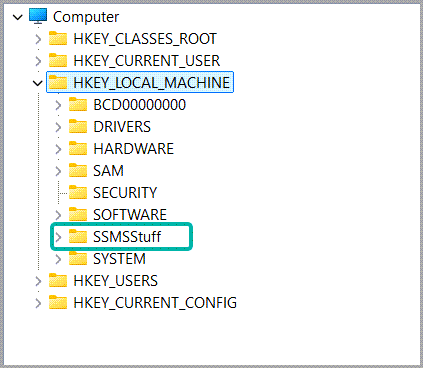
This hive contains a bunch of SSMS-related registry keys, but the only one we care about in this case is ConnectionMruList.
The full path of the registry in my case being HKEY_LOCAL_MACHINE\SSMSStuff\Software\Microsoft\SSMS\21.0_56b2001a\ConnectionMruList

Notice the connection names matching the names matching the list of saved connections in SSMS 21’s history.
So far, so good, now I just need to export this.
Exporting saved connection data from SSMS 21’s privateregistry.bin file
To export the relevant registry, I right click on ConnectionMruList and then click on Export.

This lets me save the relevant connection information as a .reg file.
Once the .reg file is exported, I can unload the privateregistry.bin file by selecting SSMSStuff, clicking on File and then Unload Hive.

Once the hive is unloaded, SSMSStuff will no longer show up in Registry Editor and I can proceed with importing the connection data in SSMS 22’s privateregistry.bin file.
Importing connection data into SSMS 22’s privateregistry.bin file
First, I need to access SSMS 22’s privateregistry.bin the same way I did with SSMS 21.
In the already opened Registry Editor window I click on File > Load Hive, but this time I navigate to where the SSMS 22 file is located (in my case in %localAppdata%\Microsoft\SSMS\22.0_d033d7e1 ) and load that privateregistry.bin file.
The import part here is that, when prompted under which name to load the hive, to use the same name provided when loading SSMS 21’s file. So, in my case, SSMSStuff.
Once loaded, I can see that the entry in ConnectionMruList (HKEY_LOCAL_MACHINE\SSMSStuff\Software\Microsoft\SSMS\22.0_d033d7e1\ConnectionMruList) matches what’s available in SSMS 22’s connection history.

Before I can import the previously exported .reg file I need to open it in Notepad++ (or your file editor of choice), and make a small change so that the ConnectionMruList registry path in the file matches the one in SSMS 22.
All I have to do is replace 21.0_56b2001a on line 3 with 22.0_d033d7e1.

Once that change is done, I save the updated .reg file.
And in Registry Editor I click on File > Import.

Then I navigate to the modified .reg file and open it.

At this point, the connection data saved in SSMS 21 has been imported into SSMS 22’s privateregistry.bin file.

At this point I just have to close the file just like I did previously:
Select SSMSStuff > click on File > Unload Hive
Did it work?
Th real test is being able to see the connections in SSMS 22’s connection history.

Notice how the SSMS 22 Connect menu has its connection history populated and the connections with saved credentials show up as actually having saved credentials.
Connecting to the container that’s running on nas1,1433 works like a charm using the saved credentials.
Conclusion
I started this as an exercise in curiosity, more to see if I can find where SSMS 21/22 store their various connections info, and I wasn’t really expecting for this to work.
But I’m really glad it did since it’s going to spare me the hassle of manually adding connections to SSMS.
I also hope this post helps anyone in a similar situation that didn’t have the time to add connections manually or the patience to wait for a patch that fixes this.
If you’re looking for a way to extract and decrypt connection information saved in SSMS 21 or 22, check out this post.
25 comments
You might add the following lines (or equivalent) for anyone with a space in their username:
$Hive21 = ‘”‘ + $Hive21 + ‘”‘
$Hive22 = ‘”‘ + $Hive22 + ‘”‘
Done! Thanks for pointing that out!
Your script saved me from having to add over 30 connections by hand to SQL Management Studio 22!
Thank you!
I love you 🙂
If someone have problem with signature:
powershell.exe -ExecutionPolicy Bypass -File c:\Temp\Import-SSMS21ConnectionsToSSMS22.ps1
Thanks for writing this up – I started looking in AppData myself and Googled when it wasn’t immediately obvious. Kind of nuts there’s no built in way to do this.
You sir are awesome.
Thank you on behalf of our entire team.
Thank you!
Thank you very much! PS script worked like a charm.
Thank you for this!
I was wondering why everyone else commenting was having success with this and I wasn’t… then realised it only applies to the “new style” connection dialog.
If you’re like me and prefer the Classic dialog (which you can switch to in settings) it doesn’t show the imported connections
Oh, that’s a good catch! I haven’t been using the Classic dialog ever since the new one was introduced in SSMS 21 so I didn’t even consider to test for that.
I’ll poke a bit to see if I can find where that data is stored and if I can find a way to migrate it as well.
In the meantime, I’ve added a note about this in the post.
If you switch to new style in SSMS 21 before running the script, the import works. Then you can switch back to the old style in SSMS 22 if you want.
I did some tests now and, while the connection history does show up in SSMS 21 when switching from classic to modern connection dialog, saved passwords don’t seem to be converted to the modern connection dialog and the option to remember password gets unchecked. Subsequent connection attempts using the saved password result in an authentication failure.
Looking into the decrypted connection data from SSMS 21 after switching to the modern connection dialog reveals what happens:
Data Source=nas1,1456;Persist Security Info=False;User ID=sa;Password=System.Security.SecureString;Pooling=False;MultipleActiveResultSets=False;Connect Timeout=30;Encrypt=True;TrustServerCertificate=True;Packet Size=4096;Command Timeout=0Notice that Persist Security Info gets set to false and the password string gets replaced by the name of the System.Security.SecureString class.
When the data gets transferred, it is available in the SSMS 22 connection dialog, but with the same issue regarding saved passwords.
So, this method works as long as you’re ok with manually updating the passwords in SSMS 22 afterwards.
Odd choice to ship SSMS 22 without this feature in GA, especially now that it is officially released.
My regular user account is non-localadmin (as nobody should be in 2025!)… let’s say it’s user “Curtis”; so the usersettings which are searched for the installer path should be… in my case
C:\Users\’curtis’\AppData\Local\Microsoft\SSMS..
the PS code appears to try and references it via this line of code..
$SSMSRoot = Join-Path -Path $env:LOCALAPPDATA -ChildPath ‘Microsoft\SSMS’
but because the PowerShell prompt is run using an ‘admin’ user not my regular nonadmin account… it evaluates $env:LOCALAPPDATA as a different path with no SSMS installation information.
The error “Could not locate two matching SSMS version folders” is then returned.
So my very non-techy way to resolve this was to replace $env:LOCALAPPDATA with ‘C:\Users\curtis\AppData\Local’
on the line…
$SSMSRoot = Join-Path -Path $env:LOCALAPPDATA -ChildPath ‘Microsoft\SSMS’
so instead it became…
$SSMSRoot = Join-Path -Path ‘C:\Users\curtis\AppData\Local’ -ChildPath ‘Microsoft\SSMS’
Not very elegant.. but the code did run successfully and imported my 30+ connections into SSMS 22.
Good catch! In my org CyberArk does some weird thing that allows non-admin uses to run PS temporarily as admin so I haven’t considered this.
I’ll add an input parameter to give folks the ability to provide a custom user name and override the result from $env:LOCALAPPDATA.
Later edit: done!
Now running “.\Import-SSMS21ConnectionsToSSMS22.ps1 -OSUserName Curtis” will import the connection data found in Curtis’s profile regardless of the user running the script.
Brilliant walk through. Saved me a ton of time.
Thank you so much
Thank you so much! This script worked like a charm!
Thanks mate. Amazing work and clear steps. Worked like a charm!
I used the new “Connect (Preview)” dialog exclusively on SSMS 21. I have tried the script and then manual process, but it seems my SSMS 21 config is missing the ConnectionMruList tree, despite there being saved servers in the dialog. Any ideas?
Hi Jeff.
I haven’t seen this issue so far. Any chance you’ve had the preview build of SSMS 21 and saved the connection details in it?
If yes: have you checked the privateregistry.bin file for the preview build as well?
This was great! The PowerShell script didn’t work for me, but the registry steps were easy enough
Hi
I’m glad it worked out! Did you get any specific error message for the PowerShell script?
I had no problem using the Powershell script, IT just had to grant me temporary admin rights to use it. Excellent work!