
Since my home lab consists of mostly Windows Server VMs, I end up occasionally getting close to the end 180 days trial period so I end up extending it on VMs that I don’t want to tear down and recreate.
I figured I’d outline the steps required to extend the trial period for Windows Server 2022 Evaluation edition – note that this also applies to previous versions.
Extending the trial period
The following commands work in both PowerShell and Command Prompt, al that’s needed is to pick one and open it as administrator before proceeding.
First, I use slmgr to check how much time is left from the current trial period.
| 1 | slmgr -dlv |

Windows will still be active for 17 days and, at this point, I have 6 rearms left.
Meaning that I can extend the trial period of 180 days 6 more times, which is a little under 3 years (2 years and 350 days).
I proceed to trigger the trial period rearm.
| 1 | slmgr -rearm |
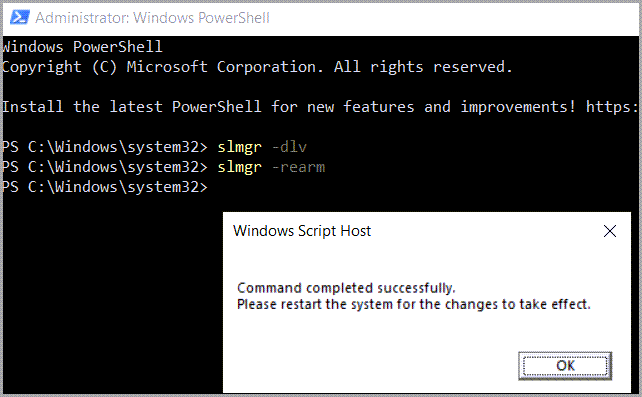
I restart the VM, and, after the VM boots back up, I check again the activation information to make sure the rearm was successful.
| 1 | slmgr -dlv |

The trial period is back to 180 days and the rearm count has decreased to 5, which is the indented behavior.
Conclusion
Just figured I’d document in a little more detail the windows server rearm process that allows you to extend the trial of the OS.
If you’re interested in more Windows Server related posts, feel free to check out my posts about setting up Windows Server 2019, 2022, and 2025 VMs in Oracle VirtualBox.